
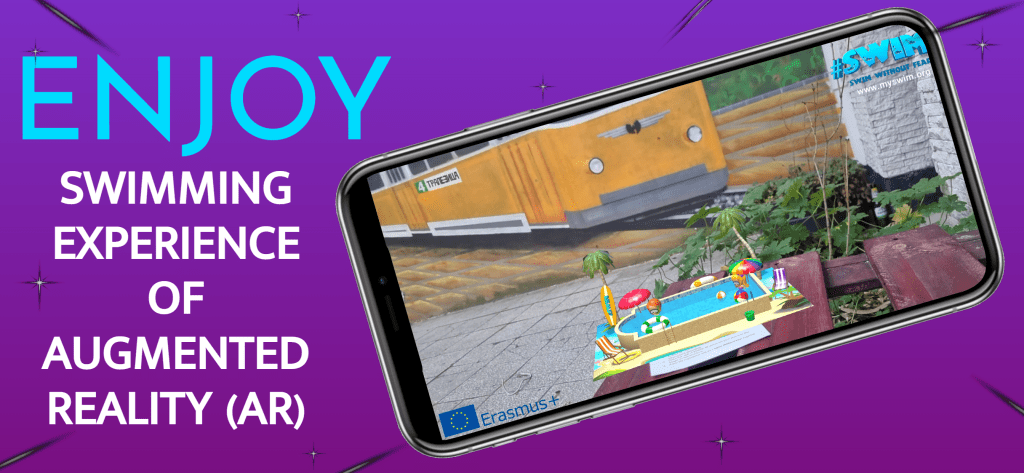
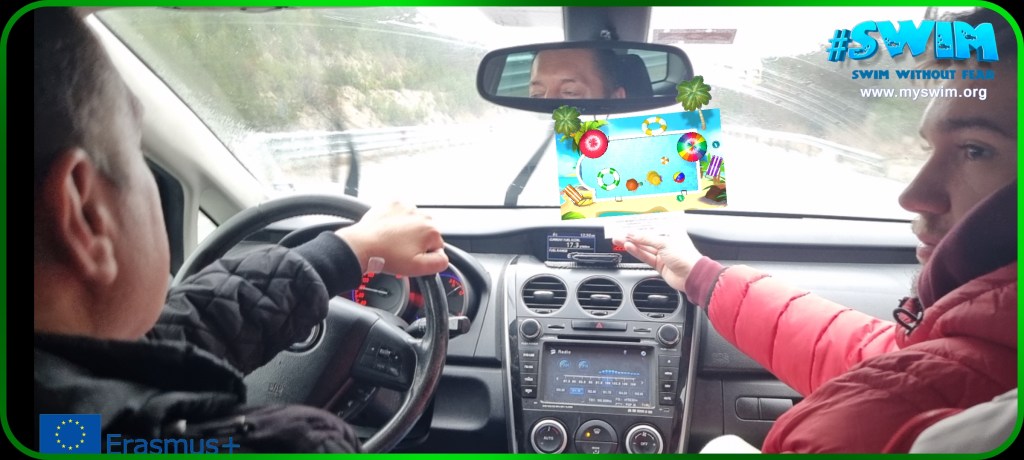
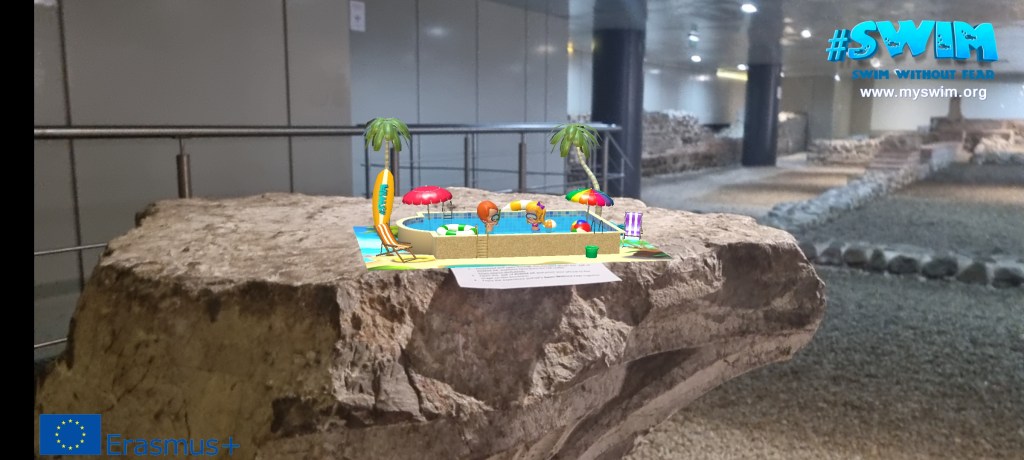
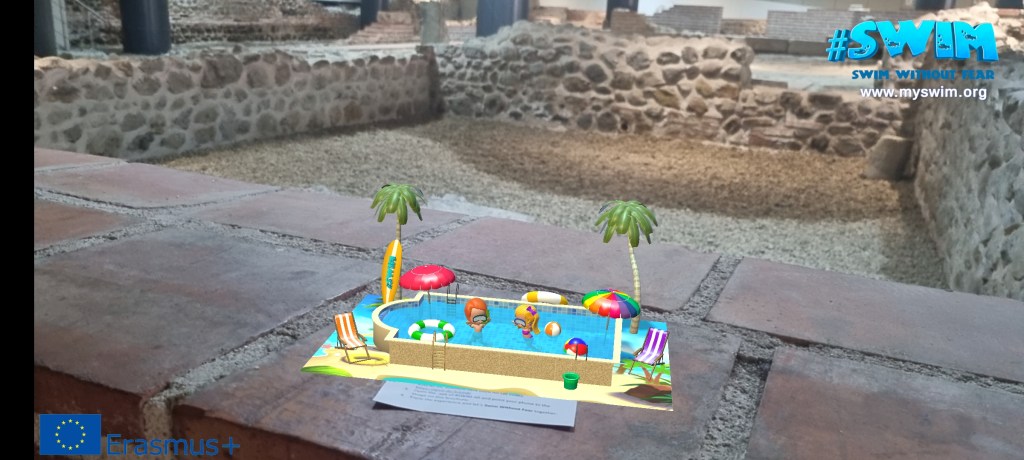
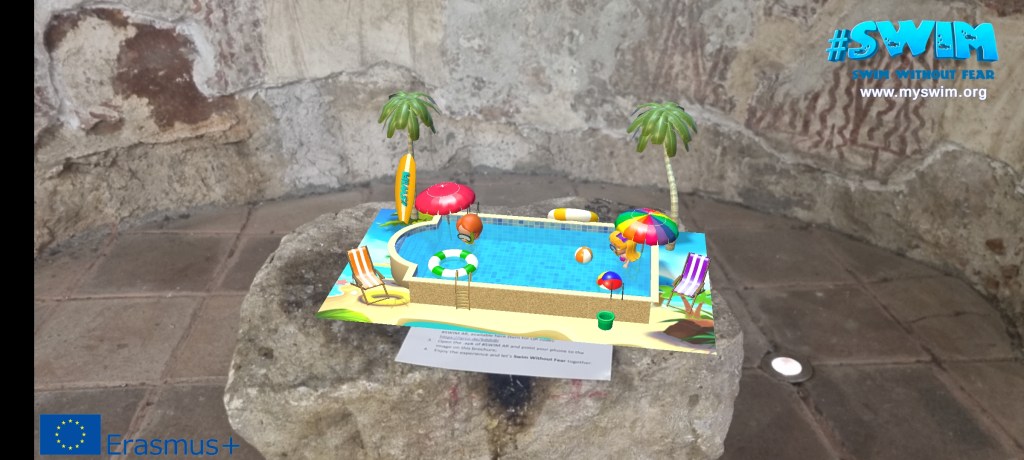
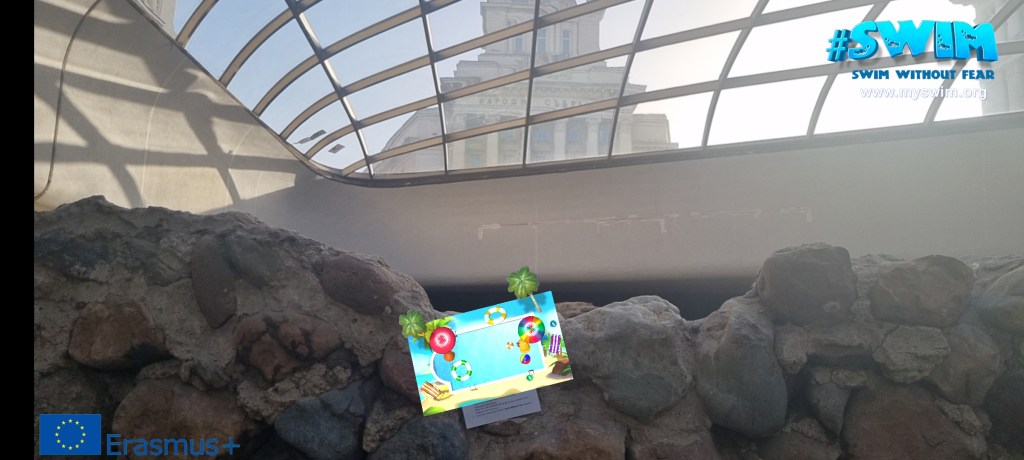
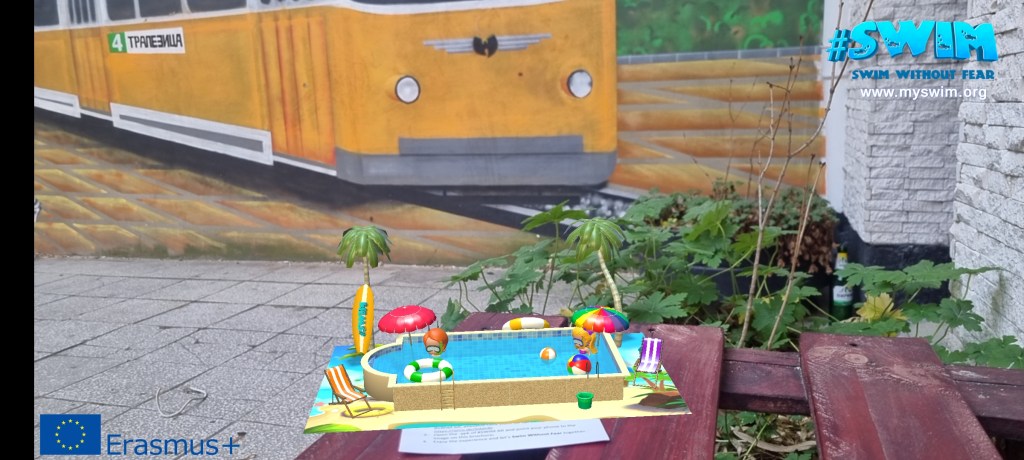
Augmented reality is an interactive experience that enhances the real world with computer-generated perceptual information. Using software, apps, and hardware such as AR glasses, augmented reality overlays digital content onto real-life environments and objects. #SWIM project team is ensuring an augmented reality experience for kids, which is free of charge and can be installed, following the instructions below. The aim of the AR application #SWIM is to empower enjoyment fro water experiences and through this positive adventure – to reduce the fear of water in early age development. Enjoy #SWIM – Swim Without Fear Augmented reality.
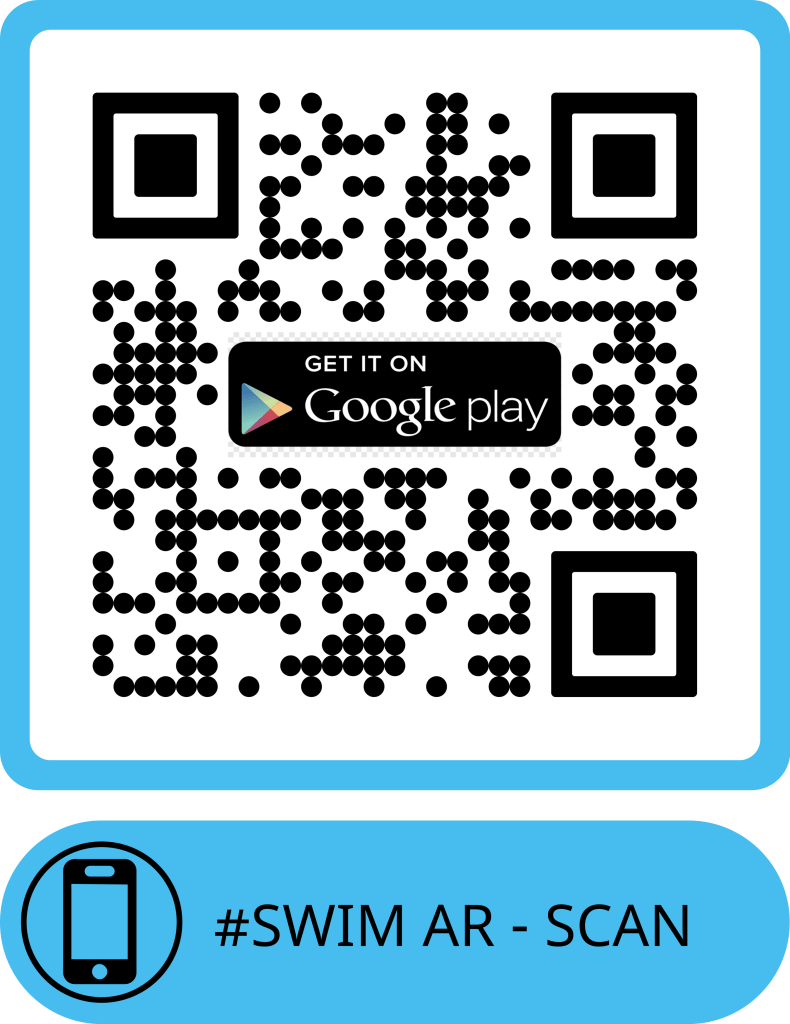
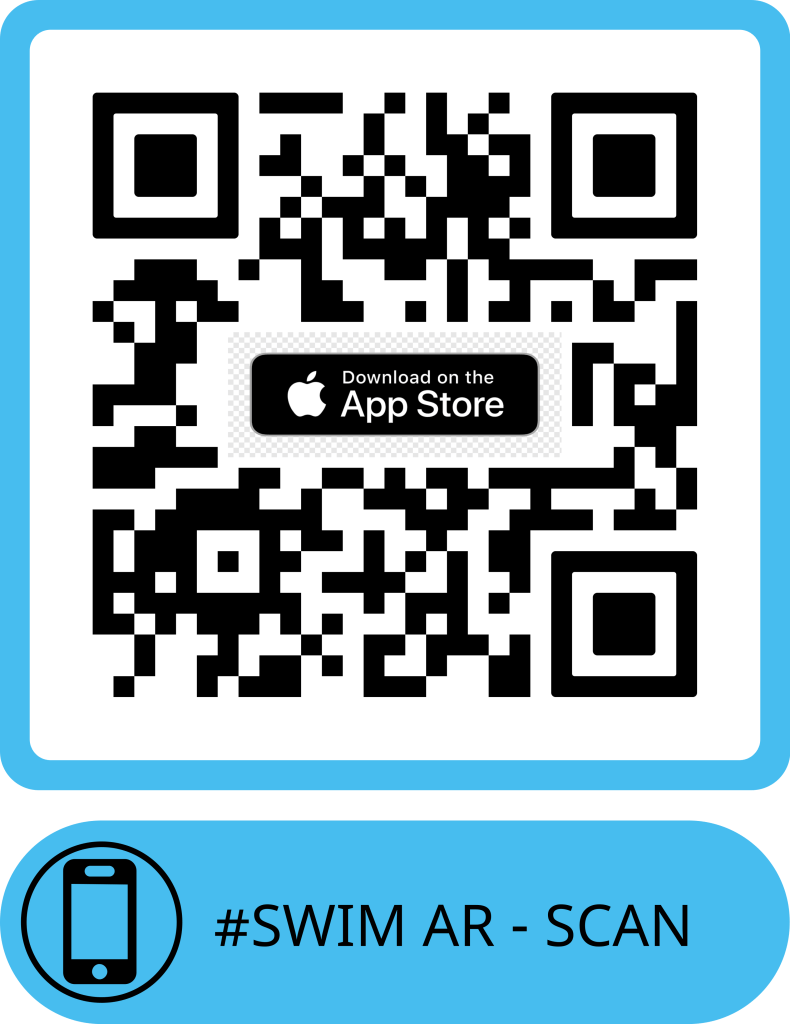
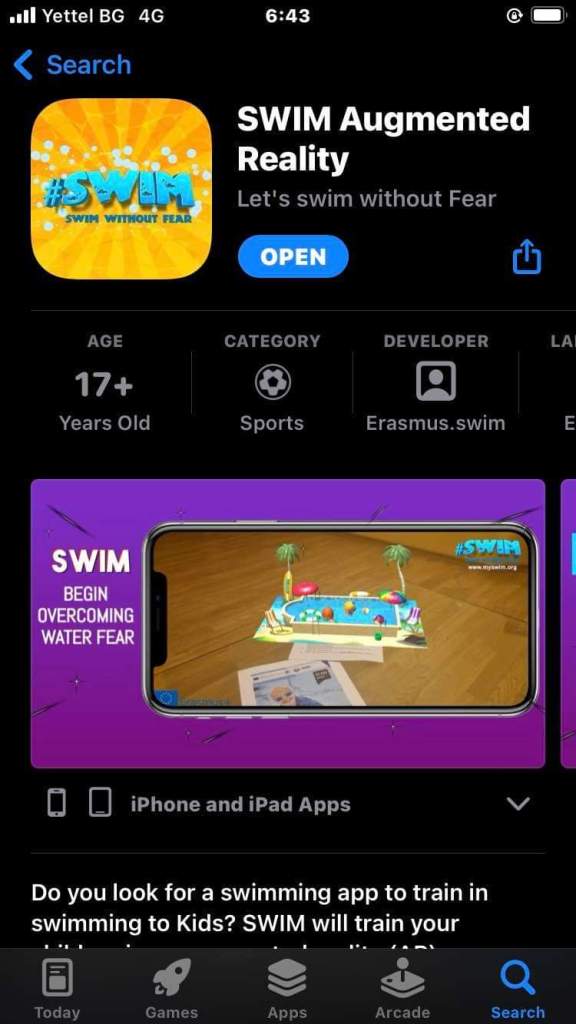

Start the #SWIM AR experience through pointing your phone to the image below (reccommended with sound ON), enjoy the experience and let’s Swim Without Fear together.
Remark: We reccomend to print the image as otherwise you would need two devices – one with the application launched and one in which the launching picture to be visible (Tips: you can print the image as well in black/white).
Application is launching through scanning the picture available above.
Launch through apk file (for Android)
Launch the experience by following the steps below:
Step 1: Installation of .apk application
Install APK Installer/player on your device (there are different applications in AndroidMarket and AppStore, which are able to open files with extension “.apk”. First step to enjoy the AR experience is to download and install on your mobile device such application, able to open the mentioned file extension;
Step 2: Downloading the #SWIM Augmented reality file
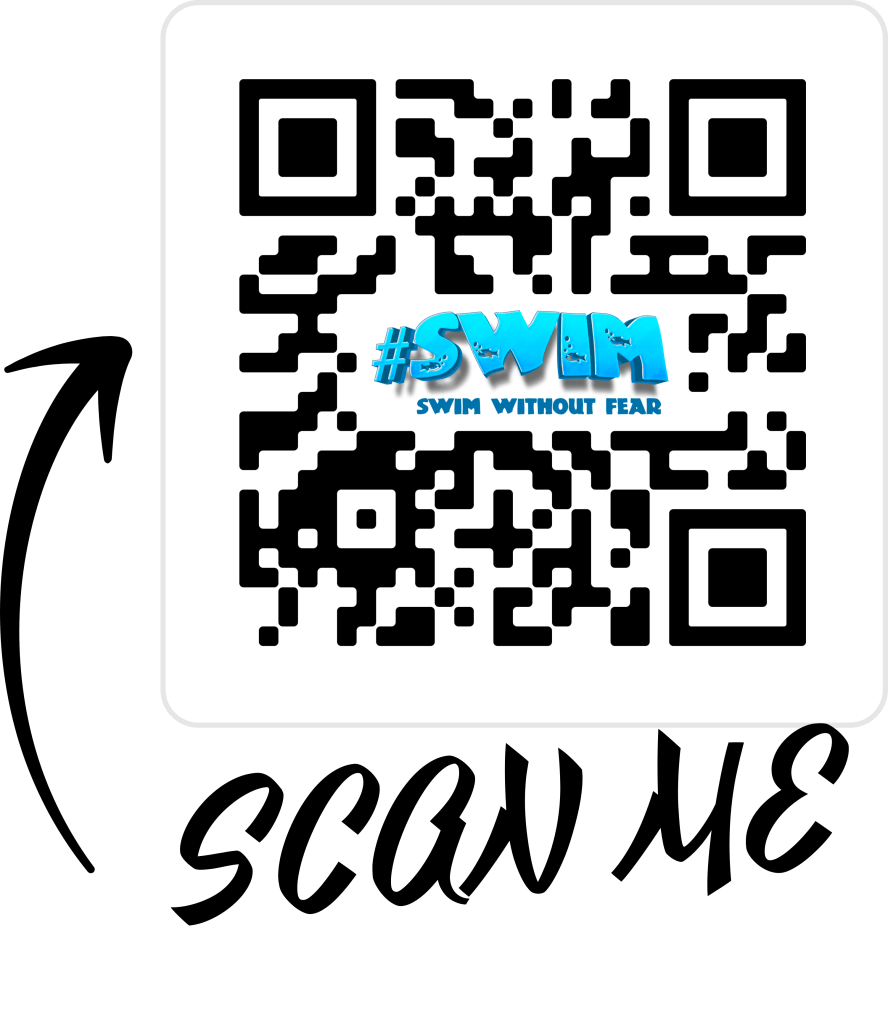
When an “.apk” installer/player is succesfully installed on your mobile device, please download on the device the #SWIM “.apk” file itself. The file is 45MB and it is available here (https://qrco.de/bddn8r). QR code for quicker download is easy reachable as well below:
Remark: If permission is needed, allow and trust the application, so the “.apk” file can be downloaded to your device.
Step 3: Install the #SWIM Augmented reality file
Open the .apk Installer/player, already installed on your mobile device. Search for #SWIM .apk (either in recent downloads folder, or through the search spot in the application, looking for Swim.apk file. Install/open the file and allow all permissions that might be required (see below for security settings instructions).
Step 4: Run the #SWIM Augmented reality application
An icon should appear as new installed application in your mobile device. Open the newly installed application “Swim” and a screen, similar to camera will be available on your device.

Step 5: Start the #SWIM AR experience through pointing your phone to the image below (reccommended with sound ON), enjoy the experience and let’s Swim Without Fear together.
Remark: We reccomend to print the image as otherwise you would need two devices – one with the application launched and one in which the launching picture to be visible (Tips: you can print the image as well in black/white).
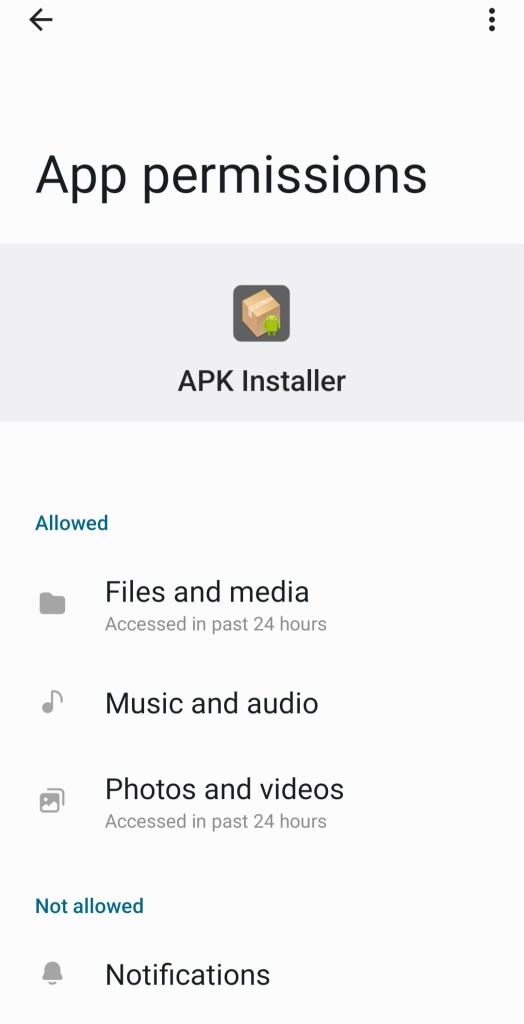
Security settings – allow app permissions and allow special access – see below the instructions for both operations:
App permissions:
- Open the Settings on your device;
- Find your Apps space (Applications);
- Choose the .apk” installer/player;
- Select Permissions tab;
- Ensure that you have allowed Files and media; Music and audio and Photos and videos (see below).
App special access:
- Open the Settings on your device;
- Go into Search in Setting panel and set in the search field “Special access”;
- In the “Special access” panel look for “Install unknown apps” and set the access to “Yes” in the .apk” installer/player application (find it on the list and allow access).



European Commission support for the production of this application does not constitute endorsement of the contents that reflect only the view of the authors, and the Commission cannot be held responsible for any use of the information contained therein.
 #SWIM! - Swim Without Fear